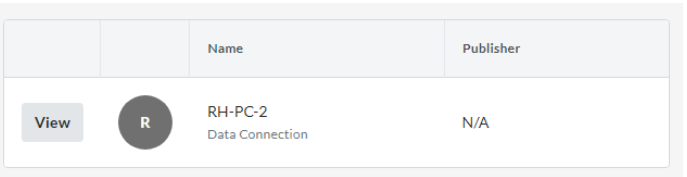


- Navigate to the Company level Admin tool.
- Under ‘Company Settings’, click App Management.
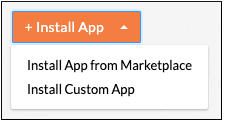
- Click Install App and choose Install Custom App
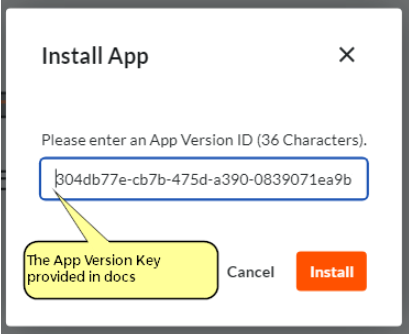
- Enter the 36-character ‘App Version ID’ provided to you by the custom App developer.
For testing purposes, this is the App Version Key you will use when installing the custom RH app: 304db77e-cb7b-475d-a390-0839071ea9b7
- Click Install.
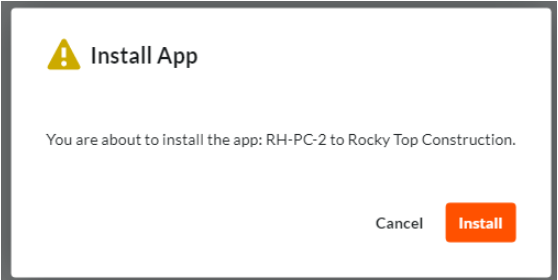
- Click Install again to confirm the installation.
- If you want to create an App configuration now for this App and apply it to one or more projects, or configure it globally, continue with the steps outlined below. Otherwise, click Skip.
- Use the Projects dropdown to select the projects you want to apply the App configuration to. You can choose Select All if you want to apply the configuration to all projects in the company.
- Note: If you want to configure the App globally with the same configuration settings across all projects in your company, click Add to Active and Future Projects.
- Enter a Title for the new App configuration.
- Enter values for any required or optional ‘Configurable Fields’.
- Click Create
- Use the Projects dropdown to select the projects you want to apply the App configuration to. You can choose Select All if you want to apply the configuration to all projects in the company.
Once you have stepped through the install, you will see this screen. You can then proceed to the next step